Skip to Content
Automower® support
How to create a virtual map with AIM Technology
Applies only to Automower® models with boundary wire that support AIM technology
AIM Technology uses GPS and built-in sensors to create a detailed virtual map of your lawn called My lawn. This map shows your boundary wire, guide wires, charging station location and your mower’s real-time position, giving you a complete visual overview of your installation.
With AIM technology, you can:
View your complete lawn layout with wires and charging station
Track your mower’s location in real time
Create work areas with separate schedules and cutting heights (if your model supports Zone Control)
Create stay-out zones to protect specific areas (if your model supports Zone Control)
Requirements
Before creating your virtual map, ensure you have:
The latest mower firmware (install using FOTA)
The latest Automower® Connect app from App Store or Google Play
A completed boundary wire installation
How to create a virtual map
Creating your virtual map is automatic. Once your installation is complete, simply create a schedule and let your mower operate normally. The mower collects mapping data while it mows, and you’ll see a notification in the map view indicating the map is being created.
Tips for optimal mapping:
Maximise mowing time: Set your schedule to allow as much operation as possible during the initial 1–2 week mapping period
Clear the lawn: Remove temporary obstacles such as outdoor furniture, toys and decorations while mapping
Enable GPS-assisted navigation: If deactivated, turn it on for better results. Go to More > Settings > Installation > Lawn Coverage in the app, or Installation > Lawn Coverage on the mower display
When will my virtual map be ready?
Your map typically takes 1–2 weeks to complete, depending on your lawn size and mowing schedule. You’ll receive a notification in the bottom navigation on the dashboard in the Automower® Connect app when the map is ready.
How to use the virtual map
Once complete, your virtual map displays:
Boundary wire and guide wires
Charging station location
Real-time mower position
Movement path (optional)
Geofence radius (optional)
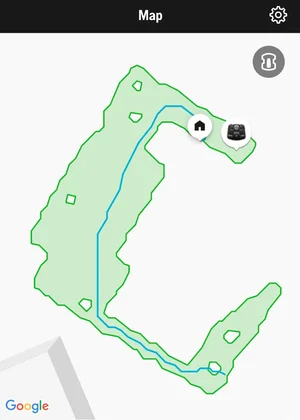
Tap the settings icon in the top right corner of the Map view to toggle Movement path, Geofence radius and Satellite view on or off.
Using Zone Control with AIM technology
If your mower supports Zone Control, you can create customised mowing zones once your map is ready:
Work areas: Create separate zones with individual schedules and cutting heights
Stay-out zones: Define areas where the mower should never enter
Important: The My lawn schedule applies to your entire lawn. When operating on this schedule, your mower will also mow inside work areas but will always avoid active stay-out zones.
Secondary areas and AIM technology
The My lawn virtual map does not include secondary areas. You cannot create work areas or stay-out zones in secondary areas, and they won’t appear on your map. You still need to manually move your mower to secondary areas.
During the initial mapping period, you can move your mower to secondary areas as needed without affecting the mapping process for your main lawn.
How to update the virtual map
If you modify your lawn or installation, or if your map is incomplete, you can create a new virtual map. An incomplete map doesn’t prevent your mower from cutting your entire lawn when following the My lawn schedule. It will still respect the boundary wire. However, you cannot create work areas or stay-out zones in unmapped sections.
Learn how to update your virtual map
What happens to the virtual map after a factory reset?
A factory reset permanently deletes your My lawn virtual map, along with all work areas and stay-out zones. You’ll need to create a new map after the reset.